
Updated on 3 Jul 2026
If you're a developer working on a live application, you're constantly making incremental changes. Bug fixes, feature updates and config tweaks are always needed. But deploying those changes by hand gets old fast, whether you're managing one app or six. Every code change you push should reach your server without you having to SSH in, pull the latest commit and restart the app yourself. That's the job of a CI/CD pipeline. And if you already have a VPS, you have everything you need to build one.
Here’s how to set up your own continuous integration and continuous deployment (CI/CD) pipeline – from choosing a CI tool, configuring Docker for clean builds, writing your first pipeline file, and wiring up automated deployment, through to adding tests and locking down security. These are practical steps rather than theory, and the examples we include use Ubuntu, the most common Linux distribution on UK-hosted virtual private servers.
Why run your CI/CD pipeline on a VPS?
Managed CI/CD services like CircleCI and Travis CI charge per build minute. And if you’re deploying several times a day, those costs aren’t going to be insignificant. A self-hosted CI/CD setup on a VPS server you’re already paying for gives you fixed, predictable monthly costs, regardless of how often you ship.
But there are other real operational advantages. You get full root access, so you can install any dependency your project needs without waiting for a vendor to support them – whether you’re wanting specific compiler versions, database engines or system libraries. Your build server is now on the same network as your production environment (or a staging copy of it). And this means faster artifact transfers and tighter control over where your code lives. And if you’re in the UK and handling customer data, keeping continuous integration and continuous deployment infrastructure in a UK data centre also makes compliance simpler.
The trade-off for going this route is responsibility. You manage updates, disk space, backups and uptime yourself. But for many developers, that’s a fair exchange.
What you need before you start
Hardware and OS
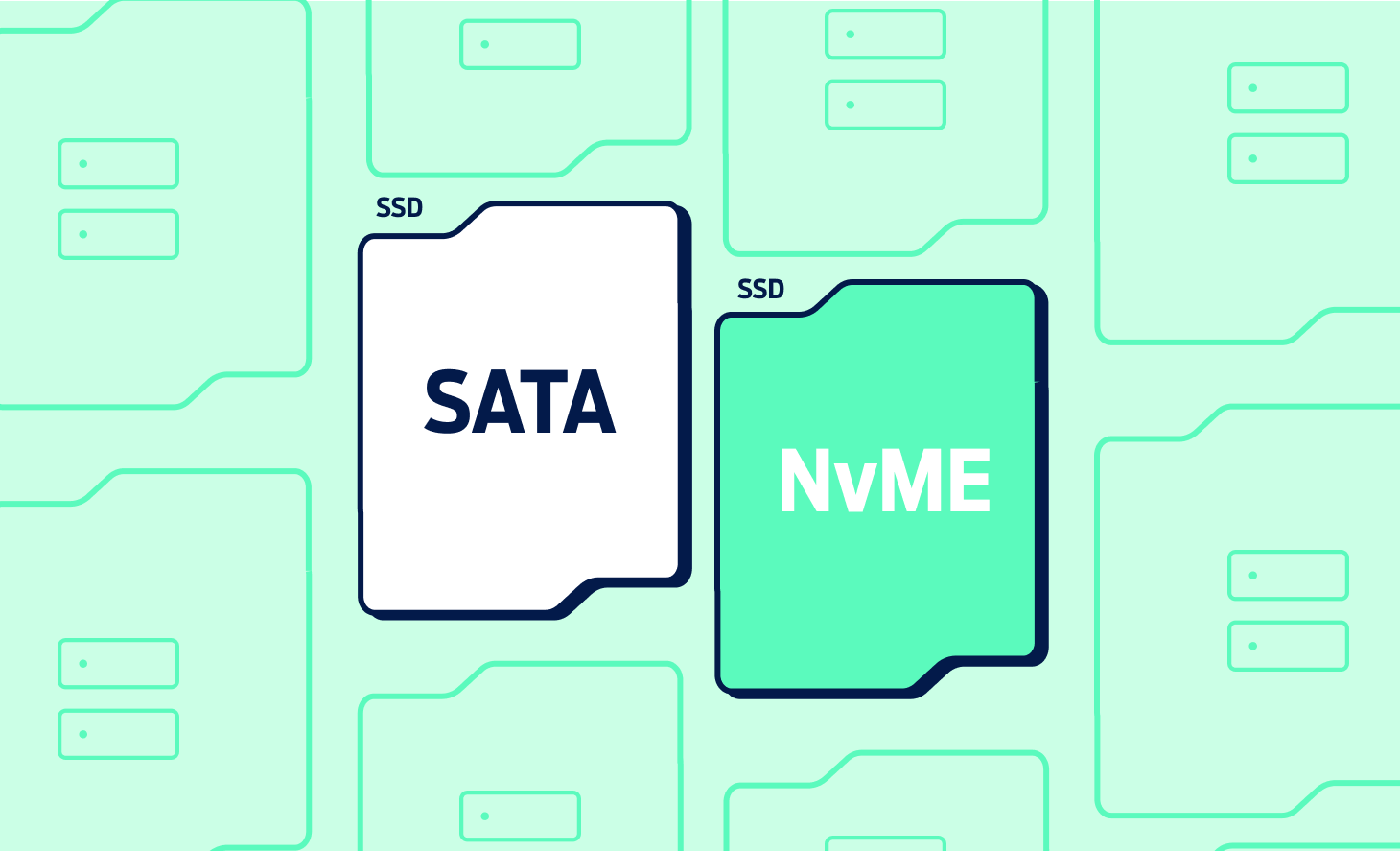
A VPS with at least 2 vCPUs, 4GB of RAM and 80GB of SSD or NVMe storage will handle most small-to-medium CI/CD workloads comfortably. If you're running GitLab CE (which bundles a Git server, a container registry and a CI runner into one package), aim for 4GB of RAM as a minimum and 8GB if you expect parallel jobs.
Install a fresh copy of Ubuntu 22.04 or 24.04 LTS. Both have long support windows and wide community documentation, which makes troubleshooting easier. Make sure SSH is configured with key-based authentication and password login is disabled.
Software prerequisites
Before you install a CI tool, get these foundations in place:
- Docker – Almost every modern CI/CD pipeline runs builds inside containers. Install Docker Engine from the official apt repository. The official version tracks upstream releases more closely.
- Git – Your VPS needs Git installed so it can clone repositories. If you plan to self-host your Git server with GitLab, this is bundled automatically.
- A reverse proxy – Nginx or Caddy will sit in front of your CI dashboard and handle HTTPS via Let's Encrypt. Running Jenkins or GitLab on a bare port without TLS is a security risk you can avoid in 10 minutes of configuration.
- A firewall – UFW (Uncomplicated Firewall) is already available on Ubuntu. Allow SSH (port 22), HTTP (80) and HTTPS (443). Block everything else.
Pick your CI/CD tool
The three most common options for a VPS-based pipeline are Jenkins, GitLab CI and GitHub Actions with a self-hosted runner. Each fits a slightly different workflow.
Jenkins
Jenkins is the most mature option. It's written in Java, runs on virtually anything and has a plugin ecosystem covering nearly every language, framework and deployment target. Install it with apt, point it at your JDK, and access the dashboard through Nginx.
The main selling point of Jenkins is flexibility. Jenkins pipelines are defined in a Jenkinsfile using Groovy syntax, and you can model complex build graphs with parallel stages, conditional steps and shared libraries. The downside is overhead. Jenkins needs more memory than lighter alternatives, and the initial setup involves more moving parts (agents, plugins, credential stores).
A good fit… if your project has complex build logic, you need to integrate with enterprise tools, or you already know Jenkins from a previous role.
GitLab CI
If you want an all-in-one platform with Git hosting, CI/CD, a container registry and issue tracking on a single VPS, GitLab Community Edition is hard to beat. CI pipelines are defined in a .gitlab-ci.yml file at the root of your repository, and GitLab Runner executes the jobs.
Install GitLab CE using the official Omnibus package, which bundles PostgreSQL, Redis, Nginx and the application server. Register a GitLab Runner on the same VPS (or a separate one) using the Docker executor so each job runs in a fresh container.
A good fit… if you want a self-contained DevOps platform, you prefer YAML-based pipeline definitions, or you need a private container registry without paying for a third-party service.
GitHub Actions with a self-hosted runner
If your code already lives on GitHub, you don't have to move it. GitHub Actions lets you register your VPS as a self-hosted runner, so your workflow files still live in .github/workflows/ but the jobs execute on your own machine instead of GitHub's hosted infrastructure.
Install the runner using the script provided in your repository's Settings > Actions > Runners page. The runner connects outbound to GitHub's API. And you don't need to open inbound ports beyond SSH and HTTPS.
A good fit… if you're committed to GitHub, you want free unlimited build minutes on public repos, or you need to deploy to VPS directly from a push to main.
Set up Docker for build isolation
Regardless of which CI tool you choose, running builds inside Docker containers is the safest way to keep your VPS clean. Each job starts from a known image, installs its dependencies, runs its steps and then discards the container. Nothing leaks between jobs, and nothing from a failed build lingers on the host.
After installing Docker Engine, add your CI tool's service user (e.g. jenkins, gitlab-runner) to the docker group:
sudo usermod -aG docker gitlab-runner
Then configure your CI tool to use the Docker executor. In GitLab CI, for example, you register a runner like this:
sudo gitlab-runner register \
--url https://gitlab.yourdomain.com/ \
--registration-token YOUR_TOKEN \
--executor docker \
--docker-image node:20-alpine
The --docker-image flag sets the default image for jobs that don't specify one. Pick a lightweight image that matches your primary language. node:20-alpine, python:3.12-slim or golang:1.22-alpine are solid starting points.
One important note is to avoid running Docker-in-Docker (DinD) with the --privileged flag unless you understand the security implications. If you need to build Docker images inside a CI job, use Kaniko or BuildKit instead. Both can produce images without needing elevated privileges on the host.
Write your first pipeline
A CI/CD pipeline typically moves through three stages: build, test and deploy. Here's a minimal .gitlab-ci.yml that runs all three:
stages:
- build
- test
- deploy
build:
stage: build
image: node:20-alpine
script:
- npm ci
- npm run build
artifacts:
paths:
- dist/
test:
stage: test
image: node:20-alpine
script:
- npm ci
- npm run test
deploy:
stage: deploy
image: alpine:latest
only:
- main
script:
- apk add --no-cache openssh-client rsync
- rsync -avz --delete dist/ deploy@yourserver:/var/www/app/
If you're using Jenkins, the equivalent Jenkinsfile follows the same logic in a different syntax:
pipeline {
agent { docker { image 'node:20-alpine' } }
stages {
stage('Build') {
steps { sh 'npm ci && npm run build' }
}
stage('Test') {
steps { sh 'npm run test' }
}
stage('Deploy') {
when { branch 'main' }
steps {
sh 'rsync -avz --delete dist/ deploy@yourserver:/var/www/app/'
}
}
}
}
Both examples do the same thing. They install dependencies, build the project, run the test suite, and (if the branch is main) sync the output to the production server.
Deploy to your VPS automatically
The deploy stage is where continuous deployment happens for real. And while two patterns dominate here, the right choice simply depends on how your application runs in production.
Basic deployment with SSH and rsync
For static sites, simple Node.js apps or PHP projects, rsync over SSH is often all you need. The CI runner connects to your production server, copies changed files and restarts the relevant service (Nginx, PM2, systemd unit, or whatever manages your process).
Set up a dedicated deploy user on your production server with a limited shell and restrict its SSH key to specific commands using authorized_keys options if you want tighter control. Store the private key in your CI tool's secrets manager (GitLab CI Variables, Jenkins Credentials, or GitHub Actions Secrets) and inject it at runtime. Never commit any keys to your repository.
Container-based deployment with Docker Compose
If your application runs in containers, the deploy step becomes build an image > push it to a registry > SSH into the server and pull the new image.
A typical flow looks like this:
- The CI job builds a Docker image and tags it with the commit hash.
- It pushes the image to your private registry (GitLab's built-in registry, or a self-hosted Docker Registry running on the same VPS).
- It connects to the production server over SSH and runs docker compose pull && docker compose up -d.
This approach works well with blue-green or rolling deployment strategies. If something breaks, you roll back by pointing Docker Compose at the previous image tag.
Add automated testing to the pipeline
No pipeline should ever see testing being skipped. The continuous integration half of CI/CD exists specifically to catch problems before they reach production.
At minimum, you should run your project's unit test suite in the test stage. If your project has integration tests that depend on a database, use Docker service containers. GitLab CI and Jenkins both let you spin up a PostgreSQL or MySQL container alongside your test job with only a few lines of configuration.
Linting and static analysis tools are worth adding too. ESLint, Flake8, RuboCop and their equivalents catch style violations and potential bugs without needing a full test run. They finish in seconds, so they add almost no time to the pipeline.
For web applications, consider adding a smoke test after deployment – a simple HTTP request that checks the homepage returns a 200 status code. If the smoke test fails, the pipeline triggers an alert, and you know to investigate immediately, rather than discovering the problem from a customer complaint.
Secure your pipeline
A CI/CD pipeline has access to your source code, your production servers and probably a handful of API keys and database credentials. Treat it with the same seriousness as any other piece of production infrastructure.
Keep secrets out of your repository. Use your CI tool's built-in secrets management. This could be environment variables in GitLab CI, the Credentials Plugin in Jenkins, or encrypted secrets in GitHub Actions. For larger setups, HashiCorp Vault gives you centralised secrets management with audit logging and automatic rotation.
Restrict who can trigger deployments. Protect your main branch so that only merged, reviewed pull requests can trigger the deploy stage. In GitLab, you can combine protected branches with protected environments to add manual approval gates before production deploys.
Update your CI tooling regularly. Jenkins, GitLab and GitHub Actions runners all receive security patches. Subscribe to the relevant advisory mailing lists and apply updates as soon as they’re released. A compromised CI server is one of the worst security incidents a development team can face, because it has write access to production.
Limit the runner's permissions. If the CI runner doesn't need to build Docker images, don't add it to the docker group. If it doesn't need root access, don't give it root access. Apply the principle of least privilege the same way you would for any other service account.
Monitor builds and catch failures early
Once your pipeline is running, you'll want to know when things go wrong, and ideally this would be before a user notices.
Most CI tools include built-in notification options. GitLab and Jenkins can send emails or Slack messages on pipeline failure. GitHub Actions supports webhook notifications and has a marketplace full of Slack and Discord integrations.
Other than notifications, you should keep an eye on build duration. A test suite that gradually creeps from 2 minutes to 15 minutes is a sign that something needs attention. It might be slow tests, missing caches or a runner that's short on resources. GitLab CI's pipeline analytics dashboard tracks this over time. Jenkins users can add the Pipeline Stage View plugin for a similar visual.
On the infrastructure side, monitor your VPS itself. CPU, RAM and disk usage all affect pipeline performance. If your CI runner is competing with your production application for resources, builds will slow down and eventually fail. A lightweight monitoring stack (Prometheus and Grafana, or even a simple cron job that checks disk space) will save you from those "out of disk" surprises.
Your hosting setup affects everything, from build speed and deployment reliability to how quickly your pipeline recovers from a failed job. If you're setting up a CI/CD pipeline on a VPS for the first time, or moving an existing pipeline away from a managed service, Fasthosts VPS plans give you dedicated resources, NVMe storage and UK-based data centres. Plus, you’re backed by a support team available around the clock. Compare VPS server plans to find the right fit for your project, or speak to our sales team.
Frequently asked questions about a CI/CD pipeline
How much RAM does a CI/CD pipeline need on a VPS server?
For a lightweight setup using GitHub Actions self-hosted runners or Drone, 2GB of RAM can work for small projects. If you're running GitLab CE with its bundled services (PostgreSQL, Redis, Puma), 4GB is the practical minimum and 8GB gives you headroom for parallel jobs. Jenkins falls somewhere in between, and 2–4GB is usually enough unless you're running many concurrent builds.
Can I run my CI/CD pipeline and production application on the same VPS?
You can, but with a caveat. CI builds, especially compilation and test suites, are CPU and memory-intensive. If a build spikes resource usage while your production app is handling traffic, both will suffer. For small projects and personal sites, sharing a VPS is fine. For anything business-critical, separate your CI runner from your production environment, even if both are on different VPS instances from the same provider.
Which CI/CD tool is best for a single-developer project?
GitHub Actions with a self-hosted runner is the simplest starting point if your code is on GitHub. There's no separate server software to install, just a lightweight agent on your VPS. GitLab CI is worth the extra setup if you also want private Git hosting and a built-in container registry. Jenkins is usually overkill for a solo developer unless you have a specific plugin or workflow requirement.
Do I need Docker to run a CI/CD pipeline on a VPS?
No, but it's strongly recommended. Docker gives each build a clean, isolated environment, which prevents dependency conflicts and makes builds reproducible. Without Docker, you'd install all build tools directly on the VPS and risk version clashes between projects. Shell executors (which run jobs directly on the host) are available in most CI tools, but they require more careful management.